Plans & billing
Note
Prices, currency, credit amounts, and the exact tier lineup are configurable per deployment, so this page describes how billing works rather than specific numbers. Prices are shown in the currency your deployment sells in. If your deployment runs with billing turned off, the plan, credit, and pricing screens are simply hidden.
Plans
Every account starts on a Free tier; paid individual and team tiers add larger credit allowances, seats, and extra capabilities. For the current plan lineup and prices, see the pricing page — the plan cards, feature comparison and FAQ on your billing page come from the same source as that page, so the two never disagree; the upgrade prompt that appears when credits run out shows a shorter selection of the same plan highlights. When a plan is sold at a discount, its card shows the regular price struck through next to the price you actually pay, with the percentage off; the discounted price is the one charged at checkout and at every renewal while the discount is in effect. Some deployments sell no free tier: a new account then starts without a plan (the billing page says so) and can spend purchased credits only, until it subscribes — the plan cards, comparison table and FAQ describe the paid tiers alone.
Where a deployment offers no paid tier at all, there is nothing to compare or buy: the billing page drops the plan cards and the feature comparison, and shows your credit balance and usage only.
Credits
Credits are the single currency for all paid activity — model calls, web scraping, voice, and so on are all converted into credits and deducted from your account's wallet, shown as a balance in the top menu. There are two pools:
- Monthly credits — your plan's allowance, which renews every billing cycle: on a paid plan from the day you subscribed, on the Free plan from the day you signed up — or, once a paid subscription has ended, from the day it ended. A promo code activation page shows the allowance of the plan it grants before you activate it.
- Purchased credits — grants, promotions, top-ups and converted affiliate earnings that never expire and roll over.
Spending draws from your monthly allowance first, then from purchased credits.
When credits run out
A long build can outrun your balance mid-flight — it stops where it got to, and the chat tells you why. When there is nothing left to spend, the composer is blocked and a top-up prompt appears; everything you have already built stays readable.
A build that overran its allowance can leave the purchased pool in the negative. That shortfall is settled automatically out of your next monthly allowance, so a new billing period or a plan upgrade clears it without you doing anything. Only a shortfall larger than a whole monthly allowance keeps the account blocked until it is topped up.
If your personal account is on the Free plan and you use up your monthly credits, we'll email you once the allowance renews and credits are available again — so you don't have to keep checking. (This is about your own wallet, so it doesn't apply to Free organizations.) Every such email carries an unsubscribe link if you'd rather not get them.
How new accounts start
What a brand-new account is asked for before it can build is configurable per deployment, and some deployments run more than one variant side by side while they work out which one serves people best. You may land on any of these:
- Nothing asked — you get the Free tier's credit allowance and start building straight away.
- A card first — you get the same Free allowance, but only after adding a card. Nothing is charged while the allowance lasts. When it runs out, your subscription starts a day later at the plan's normal price, and you are told before that happens. Cancelling in that window, or any time after, is one click in Account → Billing → Manage subscription.
- A plan first — you choose a paid plan to begin, often at a reduced price for the first period. The discount covers that first period only; renewals are at the plan's normal price.
Whichever you get stays the same for your account — it does not change from one session to the next. Accounts created before a deployment enabled any of this keep the terms they signed up under.
Managing billing
Owners start a subscription for a paid plan from Account → Billing, and the same page shows states like "past due" and "cancels at period end." Top-up packages for buying extra credits exist where enabled on your plan. How the rest works depends on the payment provider your deployment runs on:
- Hosted payment portal (Stripe deployments) — checkout opens a hosted payment page, and Manage subscription takes you to the provider's portal to upgrade, downgrade, cancel, reactivate, or update the payment method.
- In-app (CloudPayments deployments, such as the Russian market) — checkout is a card form right on the billing page (Mir, Visa and Mastercard), and the subscription is managed there too: Cancel keeps the plan until the end of the paid period, Reactivate picks it back up before that date, Change plan switches immediately — an upgrade is charged to the saved card right away for the new price minus the unused part of your current period (by days left; the confirmation dialog shows the exact amount), and your billing date resets to today; a downgrade takes effect at the next renewal — and Change payment method binds a new card or SBP account to the subscription: a 1 ₽ verification charge is made and refunded at once, and the subscription keeps its renewal date. Payments by card, T-Pay and SBP are all accepted; when an upgrade is paid from an SBP account the bank confirms the charge asynchronously, so the plan switches a few seconds later, once the payment is reported. A fiscal receipt is issued for every payment under Russian law (54-FZ) and sent to your account email. A full refund of a subscription payment ends the subscription and moves the account to the Free plan; a partial refund leaves the plan in place.
Extra seats. A team plan includes a fixed number of seats (the owner takes one). An organization that needs more buys extra seats on its active subscription; each extra seat adds the per-seat price to the monthly renewal and the per-seat credits to the shared monthly allowance. On in-app deployments the owner changes the seat count in the Seats block of the billing page: adding seats charges the saved payment method right away for the price difference over the rest of the current period (the confirmation dialog shows the exact amount), the renewal date does not move, the new seats can be invited immediately, and their extra credits are added for the same share of the period — the full per-seat allowance starts with the next renewal; removing seats charges nothing and lowers the next renewal, but the count can't go below the people already in the organization (members plus pending invites) or below the plan's included seats. When the seats are paid from an SBP account the bank confirms the charge asynchronously, so they appear a few seconds later, once the payment is reported. On hosted-portal deployments seats are the subscription quantity: Manage subscription opens the portal, where the quantity is changed and prorated by the provider.
When a renewal payment fails, the plan stays on while the provider retries the card over the next few days; the billing page shows the subscription as past due, with Pay with another card on in-app deployments — the new card is charged right away and the subscription continues. If every retry fails, the account moves to the Free plan, and its monthly allowance restarts from that day.
Refunds. Refunding a top-up takes its credits back from your purchased balance; a partial refund takes back the same share of the credits as the share of the payment refunded. If those credits were already spent, the balance can go negative. On hosted-portal deployments a card dispute (chargeback) on a top-up counts as a refund of the disputed amount: once your bank takes the money back, the same share of its credits is taken back, but never more than the part of the top-up not already refunded. Any refund, and on hosted-portal deployments any chargeback, also takes back the affiliate earnings your spending gave other creators within the hold period.
Seeing your usage
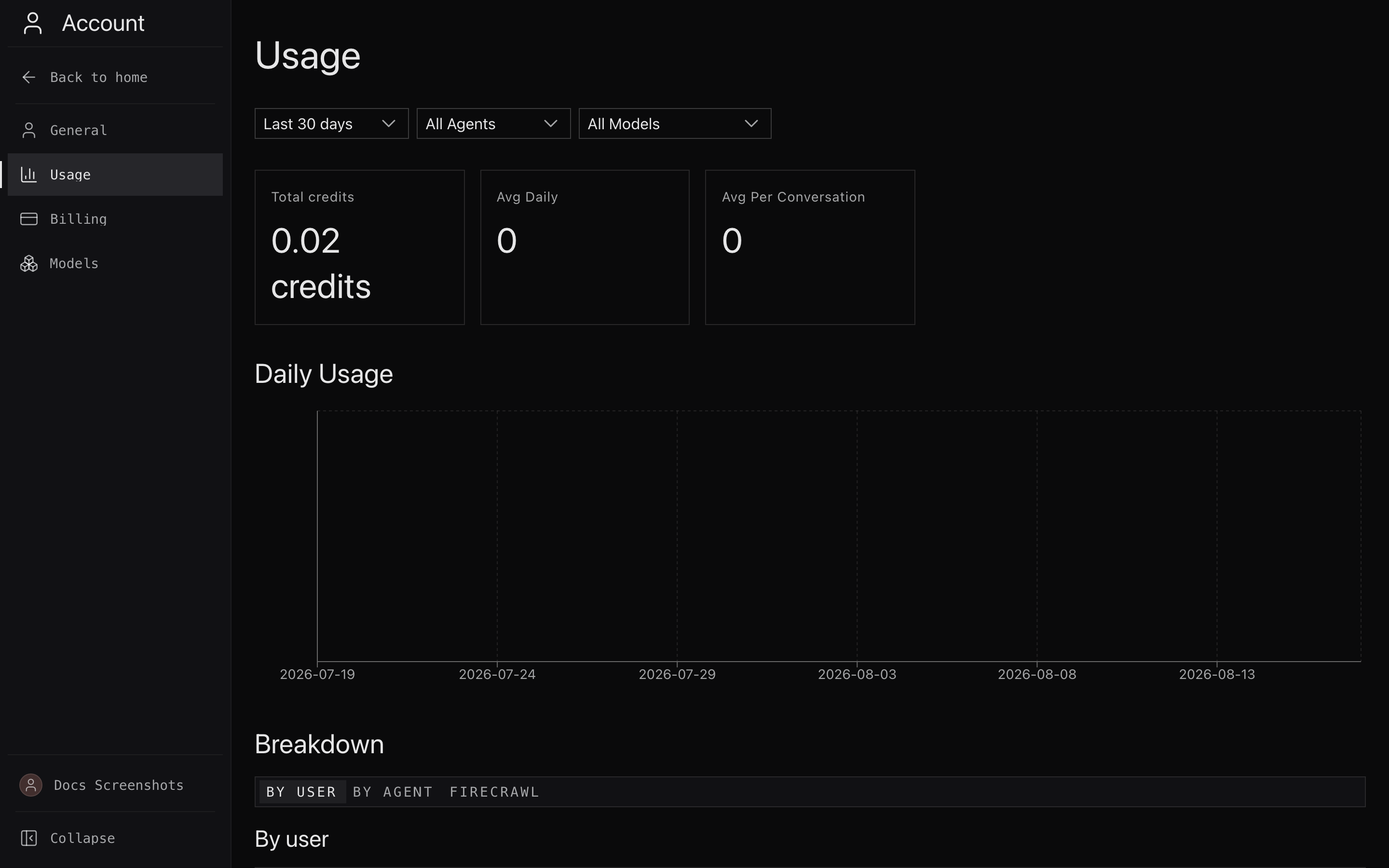
A self-serve Usage page shows a period filter (7 / 30 / 90 days), filters by agent and model, headline stats (total credits used, average daily tokens, average per conversation), a daily chart splitting prompt vs. completion tokens, and breakdowns by user, agent, and model. By user is who was charged — the payer. A separate list, Users whose shared-agent work consumed this wallet, shows which people used a shared agent on this wallet, which agent, whether the owner or that person paid, and the credits. It is not the same list: someone can use an agent you pay for without being the person the charge is recorded against. People who have left the account still appear when the charge landed on this wallet. Use they paid from a different wallet does not appear here. The first period after this list appears only includes use that was attributed from this change onward. Older charges stay in the payer totals and are not reassigned. Credit figures are hidden when billing is disabled, and for organization members (non-owners) shared-wallet totals are masked.
Plan features and spending controls
Plans also unlock capabilities beyond credits and seats — for example evaluations, agent optimization, and email support — and when a capability isn't on your plan, the related UI is hidden. Within an organization, admins and the owner can set per-member monthly spend caps and restrict which models a member may use. That cap is for the organization's shared wallet as a whole. It is separate from the monthly allowance an agent owner sets for each person who uses a shared agent, which applies only to use that owner pays for on that agent (see Choose who pays).
Promo codes
Some partners (for example, education programs) hand out promo codes that activate a plan on your account.
The activation link your partner gives you (it looks like
…/p/<partner-name>) opens a page that names the partner and spells out what
the code is worth: the plan it grants and, where the plan has one, its monthly
credit allowance. You can read all of that before signing up.
To use a code:
- Open the link and sign in — or create an account first. If the link already carries your code, it is shown on the page and fills itself back in after you sign up, so you never have to retype it.
- Enter the promo code and press Activate. The plan tied to the code is applied to your account immediately, and the page confirms which plan landed.
If a code is refused, the page says why — already used, deactivated, or expired — and you can try another one without reloading. If the page cannot reach us at all, it says so: press Activate again with the same code. It is safe to repeat your own code — entering a code you have already activated simply confirms the plan you have rather than reporting a problem.
No link at hand? While on the Free plan you can also open Account → Billing and click I have a promo code to enter it there.
A few things to know:
- A code works once, and only on an account that is on the Free plan. If you already have a paid subscription, or a plan from an earlier code, a new code cannot be applied.
- Codes can have an expiry date — an expired code can no longer be activated.
- Access granted by a partner follows the partner's own terms: when your program or billing period with the partner ends, the partner may end the granted access, and your account returns to the Free plan. Anything you built stays in place.