Documents & RAG
Give your agent your own material to answer from — product manuals, policies, spreadsheets, slide decks, scanned PDFs — and it will ground its answers in that material instead of guessing. You never configure retrieval by hand: you upload documents, link them to an agent, and the agent searches them automatically as it works. This is what "RAG" (retrieval-augmented generation) means in Donkit, framed as a feature rather than a pipeline you have to build.
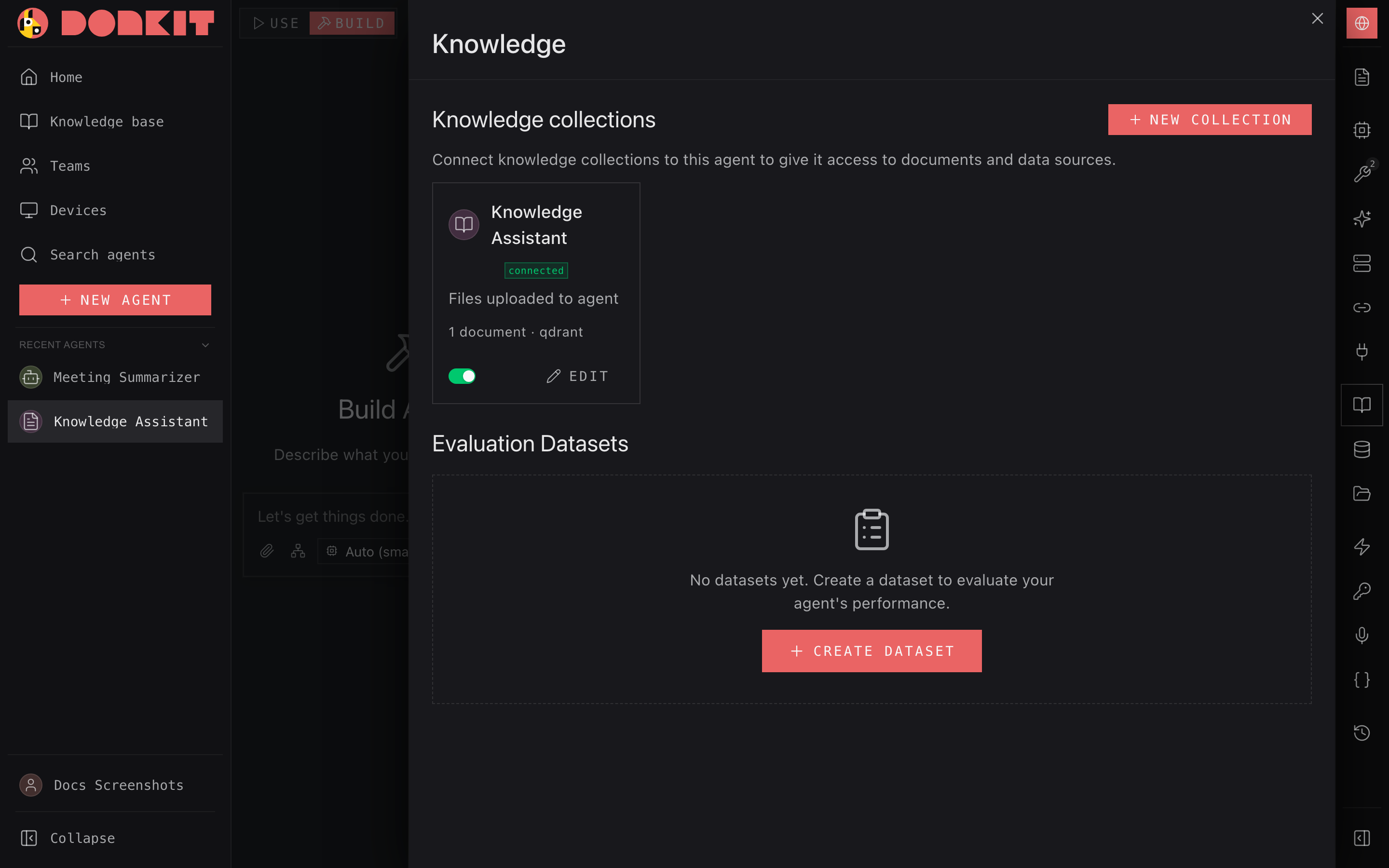
Collections and data sources
Knowledge lives in the Knowledge section, organized into collections. A collection is a named group of documents on a topic — for example "HR policies" or "Product catalog." Inside a collection, each uploaded file is a data source.
- Create a collection with New collection, give it a name and an optional description.
- Add material with Add data / Add data sources — drag and drop files, or pick them from your computer.
- Each data source shows its File, Size, Status, number of Chunks, and when it was Uploaded. You can preview a document, retry a failed one, or delete it.
How a document is processed
When you add a file, Donkit prepares it for the agent automatically. You'll see each data source move through a short lifecycle:
- Pending — queued for processing.
- Processing — Donkit reads the document, and for scanned PDFs and images it also runs text recognition and describes diagrams and pictures so their content becomes searchable.
- Completed — the document is ready and the agent can use it. The Chunks count shows how many searchable passages it was split into.
- Failed — something went wrong (for example, a corrupt or unsupported file). You can retry failed documents individually, or retry all failed documents in a collection at once.
The Knowledge view refreshes on its own while documents are processing, so the status updates without a manual reload. You can't delete a document while it's still processing; wait until it finishes or fails.
Supported file types
Donkit reads a wide range of document, spreadsheet, presentation, and image formats:
- Documents & text: PDF, Word (
.docx,.docm,.dotx,.dotm), plain text (.txt,.text), Markdown (.md), HTML (.htm,.html,.xhtml), AsciiDoc (.adoc,.asciidoc,.asc), LaTeX (.tex,.latex), and R Markdown / Quarto (.rmd,.Rmd,.qmd). - Spreadsheets: Excel (
.xlsx,.xlsm) and CSV (.csv). - Presentations: PowerPoint (
.pptx,.pptm,.ppsx,.ppsm,.potx,.potm). - Images (with text recognition and visual description):
.png,.jpg,.jpeg,.bmp,.tif,.tiff,.webp. - Subtitles / transcripts:
.vtt.
Note
Animated GIFs are not supported. If you upload a file in an unsupported format, Donkit tells you rather than failing silently.
Very large spreadsheets
Spreadsheets are normally indexed in full, including table structure. Very large workbooks (hundreds of thousands of cells) are indexed in a simplified mode instead: the first 300 rows of each sheet. If you need the full dataset available to an agent, connect it as structured data (a database table) rather than a knowledge document.
How the agent uses knowledge
- Link the collection to your agent. In the Knowledge section a collection lists the Agents with access; linking an agent grants it that collection.
- A linked collection always works in your own conversations with the agent, as the owner. For it to work in everyone else's conversations with a published agent, turn on Use for everyone for that collection in the agent's sharing settings (see Share workflows, knowledge and API access). Collections linked before this setting existed were switched on automatically; a collection you link from now on starts switched off until you turn it on. People never open the collection itself — only the agent reads it, in its answers and cited sources.
- When the linked agent answers, its Vector Search tool finds the most relevant passages across the linked collections and uses them to compose a grounded answer. If the agent also has the Document Reader tool, it can open a full document rather than relying on snippets.
- Because answers are drawn from your material, they stay consistent with your source of truth, and when you update a collection the agent's answers follow.
The Knowledge panel in the Android app
In the Android app, Knowledge in the builder's menu manages the collections attached to your agent:
- Each attached collection shows its document count and a Use for everyone switch — the same setting as described above. Tap a collection to open its documents.
- Attach existing lists the collections you can use that aren't attached yet. New collection asks for a name and an optional description, creates the collection, attaches it to the agent and opens it.
- Detach, in a row's menu, stops the agent from using a collection; the collection and its documents are kept.
Inside a collection, Upload files picks files from your phone, shows the progress and indexes them once they are uploaded. Every document shows its status — Pending, Processing, Completed or Failed with the reason — and the list refreshes on its own while anything is still being processed. Retry re-runs a failed document and Retry failed re-runs all of them at once. A document can be deleted after you confirm, but not while it is still processing. A collection you can only read can be opened but not changed.
Your own knowledge on someone else's agent
If you use an agent someone else published, you can attach your own knowledge collections to it — from My settings → Memory → My knowledge on the agent's page, from chat, or from My memory in the mobile apps. Your collections work only in your own conversations with that agent: nobody else who uses the agent sees them, including its owner. Detaching a collection, or deleting it, stops the agent from using it.
Sharing collections
Each collection has a Sharing setting that controls who can see and attach it:
- Private — only you.
- Organization — everyone in your organization.
- Shared — shared more broadly, optionally filed under a category so others can find it.
Files in chat
When you attach files during a conversation, they are immediately available to the agent to work with — no waiting, no separate upload step. The agent can read their contents, reference them, or process them right away.
If you want a file indexed for search, toggle Add to Knowledge on the attachment. The toggle is offered for the formats listed above — the ones Knowledge can read; for anything else Donkit says so instead of indexing silently. Donkit then processes the file and, once ready, it becomes available to every agent you connect to that Knowledge collection.
Files you don't add to Knowledge are still stored: the agent can open one by name in a later message of the same conversation or a new one. What indexing adds is semantic search across the document, not access to it.
You can also ask the agent to add a file to your Knowledge during a conversation. Indexing is on-demand and optional; chat files stay usable whether or not you add them to Knowledge.