Computer use & browser
Give your agent the ability to operate a real browser or computer on your behalf, instead of only chatting. Donkit models this around devices — the machines an agent can act on — in two flavors:
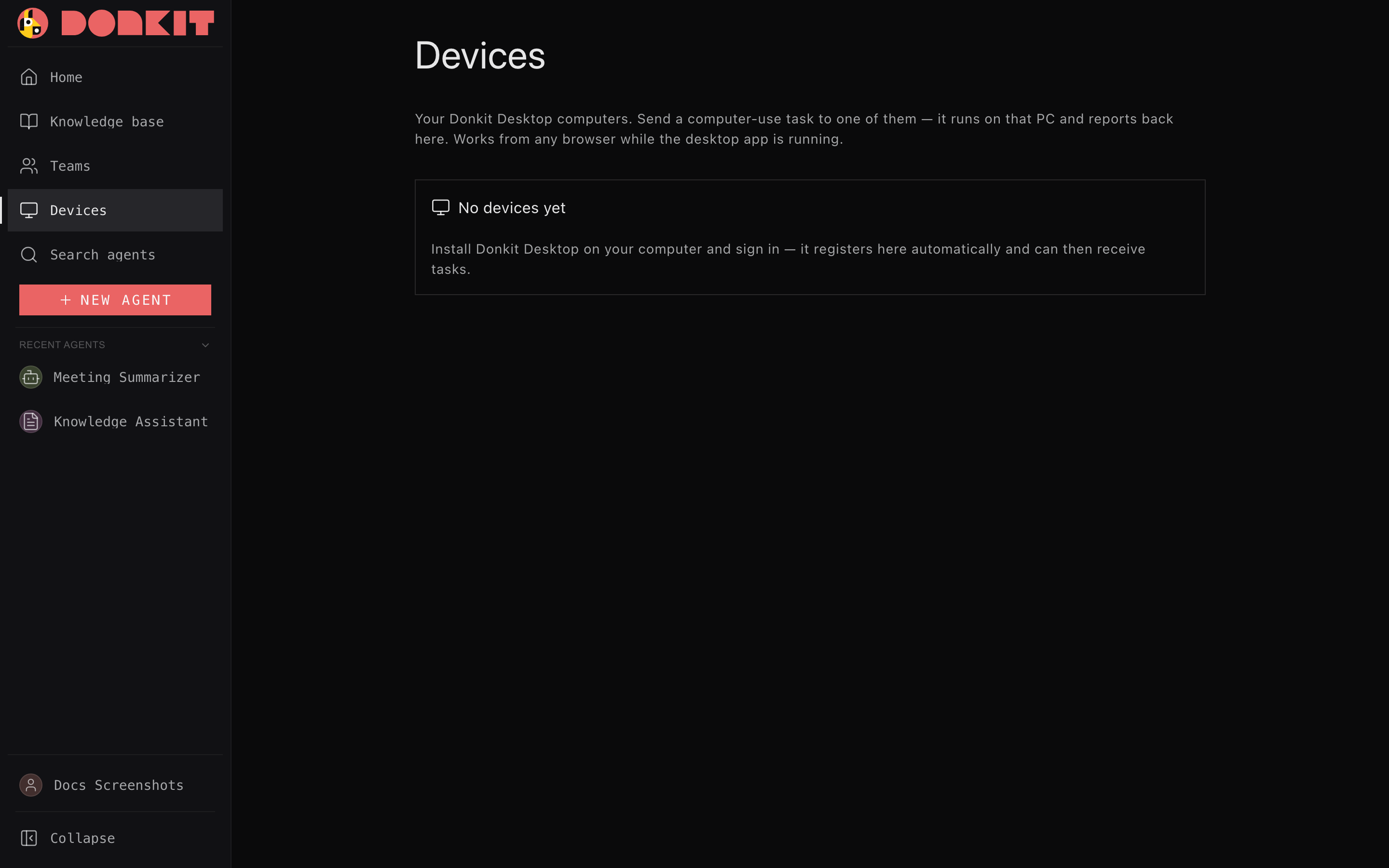
- Browser control (via the Donkit browser extension). You install a small browser extension and pair it with your Donkit account. Once paired, an agent can drive that browser tab — navigating to pages, clicking, filling in forms, reading what's on screen, and completing multi-step tasks in web apps you're already logged into. Everything the agent does is recorded in an activity trail you can review, filtered by device and by time.
- Computer use on a PC (Donkit Desktop devices). You run the Donkit Desktop app on a computer — currently Windows-only. That machine shows up as a device, and you can dispatch a task to it — either run it locally on that PC, or remotely from your browser while the desktop runs elsewhere. The agent then performs real computer actions on that machine and returns the result.
- The Donkit mobile and Mac apps. Signing in on your phone also registers it as a device, shown with a Phone badge on the same Devices page; signing in on a Mac registers it too, with a Mac badge. You cannot dispatch a computer-use task to either, but they appear alongside your desktop devices so you always have one place to see and manage everything signed into your account.
What you can do with it
- See all your devices, whether each is online or offline, and when each was last active.
- Pick a device, pick a computer-use-enabled agent, type a task in plain language ("open this site and download the latest invoice"), and run it.
- Watch progress live: pending → running → done, with a step-by-step activity list and a final result.
- Grants are the consent. Actions on apps you've allowed for the agent run without prompts; an action on any other app is refused and listed in the task activity as Denied by policy, so you can see what to allow next time. Files follow the same rule: the agent writes new files inside the folders you granted, and overwrites only where the grant allows it. You can stop a session at any moment with the on-screen kill switch or your registered emergency shortcut (initially Ctrl+Alt+K). When you are chatting with the agent on that PC, Stop in the chat ends just that turn: the agent stops acting on the computer and the chat is ready for your next message. Grants cover what the agent does on this PC; your account's security rules are a separate layer on top — see Agent security for the controls that can make an agent ask for approval before other kinds of actions.
How you turn it on
- Enable the Computer use capability on the agent (in the agent's tools). Only agents with this capability appear in the device task picker.
-
Add a device:
- For browser control: install the Donkit browser extension, then pair it by generating a pairing code in Donkit and pasting it into the extension. The code is single-use and short-lived.
- For PC computer use: download Donkit Desktop for Windows (Windows 10 or 11, 64-bit), install it and sign in — the computer registers itself as a device automatically. The app keeps itself up to date from the Donkit server it is signed in to.
Installing on managed computers
For a company rollout there is a second, larger download that carries everything it needs and installs without an internet connection: Donkit Desktop, offline installer. Both downloads install silently with the
/Sswitch, so they can be pushed to machines by an IT team. Windows may still ask for permission to make changes. -
Open Settings → Devices (the Devices page in your account settings), choose the device and agent, describe the task, and run it. Any device — phone or computer — can be removed at any time from the Devices page; removing one immediately ends its sessions.
PC/desktop computer use is still rolling out, so it may not be enabled on every deployment yet — the Devices page will say so if it isn't available on yours.
Your first run on a new PC
The first time you sign in to Donkit Desktop on a computer, a short guide walks you through the three things that make that machine useful, then gets out of the way. It runs once per computer, not once per account: a second PC needs its own permissions, so it gets its own first run.
- Let Main use one app. Pick a single app on this PC and allow Main, your account's built-in assistant, to use it. That permission is the whole consent — from then on Main works inside that app without stopping to ask, and anything you did not allow stays out of reach. You do not need an administrator account or a separate agent to start.
- Give it a task. Choose Open chat to open a new conversation with Main and ask for one small, real thing in the app you just allowed — something you would otherwise do by hand. Stay and watch it happen. Permissions for your other agents are configured separately in each agent's settings.
- See how you stay in charge. While the agent is working on the PC, a separate card above your other windows names the apps it may use and carries a Stop button. It stays visible when you minimize Donkit and follows the monitor you are working on. The card shows the emergency shortcut Windows has registered for Donkit; it works from other apps too.
The on-screen emergency Stop and the registered shortcut cancel local tasks and pause the desktop runtime. New local tasks stay blocked until you choose Resume. The chat composer's Stop button cancels only the current conversation's task; it does not pause the whole computer.
If another application already uses Ctrl+Alt+K, Donkit shows that the shortcut is unavailable. Open Settings → Desktop app → Emergency stop shortcut and choose Ctrl+Shift+F12 or Ctrl+Alt+F12. The setting takes effect immediately and survives a restart. A failed change keeps the working shortcut registered; use the on-screen Stop while resolving a conflict.
Skip ends it for good: whether you walked through the guide or skipped it, it does not come back on that computer. In a browser it never appears at all — it belongs to the desktop app.
To change these permissions later, open your avatar menu → Desktop app → Application access. Choose Main for the assistant in Chats, or choose another agent. Add application allows another app; the × on an app's row removes its permission. Each agent has its own list on each PC. The same list is also available in the agent builder under Tools → Computer Use.
Chats and links to this PC
Computer-use conversations keep your messages and the assistant's final reply in chat history. Reopen the conversation after a reload to continue with that context. Stopping a turn saves the answer received so far. If the desktop app exits before it can save a reply, it reports that the turn was interrupted; reconnecting does not repeat computer actions automatically.
In the browser, Open in Donkit Desktop appears on an agent's chat and on Devices once your account has a registered desktop. It opens that agent in the installed app. A task entered on Devices becomes a draft: review it and press Send to start. Opening a link grants no new permissions. If the app does not open, the same control offers a Windows download link.
Devices receives task status, activity and results as they change. If the connection drops, it reconnects and restores the saved progress.
Windows confirmation screens, the lock screen and other protected desktops require a manual step. Complete it yourself and return to your normal desktop before asking the agent to continue.
Donkit Desktop updates
Donkit Desktop checks for a new version by itself: shortly after it starts, every six hours while it runs, and after the computer wakes from sleep. Nothing is downloaded until you decide: a banner at the top of the window (and the tray menu) shows Desktop update available with Download and install, Details and Later.
- What's new. The banner and the update itself now tell you what changed, not just that something did — a short summary of the release waiting to install.
- Download and install fetches the update in the background. If nothing is running on the desktop it installs right away and the app restarts; if an agent is using the computer, the update waits — the tray shows Restart to update and the banner says the update will install when you quit.
- Later hides that version until a newer one appears.
- On the Desktop settings page you can turn Check for updates automatically off (you can still check by hand from the same page or the tray) and read What's new for the waiting version.
- Signed into a build where this update check doesn't exist at all — an older desktop build, a self-hosted platform without the route, or a platform/architecture Donkit doesn't publish for — the Desktop settings page says so plainly — this server does not publish desktop updates — instead of showing an error. That is expected there, not a problem with your install. A platform that does publish updates but simply has nothing newer than what you're running just reads as up to date; a real connection problem (the server unreachable, a broken response) still shows as a failed check.
When something goes wrong on the PC
The Desktop settings page opens with This build: the version you are running, the update channel it follows, and the Donkit server it is signed into. Those three lines are what support asks for first, so they are worth quoting whenever you report anything.
Under them sits Collect a problem report. It writes a single .zip into your Downloads folder, or the next writable place if Downloads isn't, and opens that folder for you, so you can attach the file to a message without hunting for log files.
What the zip contains:
- a summary — the same version, channel, server and OS as above;
- the tail of the desktop app's log;
- the tail of this computer's local activity trail (what the agent did, when);
- this computer's Donkit Desktop settings file.
What it never contains: the secret store, the audit checkpoint, or anything else from the OS keychain — so your saved passwords, tokens and connected-account credentials never leave the machine this way. Anything that looks like a credential — a password, a key, a token, an authorization header — is also replaced with [redacted] in every file in the bundle before the zip is written. The report is yours to read before you send it: open the zip and look.